What’s New
Get the latest Klip for Mac
Free · macOS 26 or later, Apple silicon. Klip also checks for updates for you.
Download for Mac
or install with Homebrew
brew install --cask ronier83/tap/klipKlip 1.72Latest
Search from the menu bar, sizes for every screen
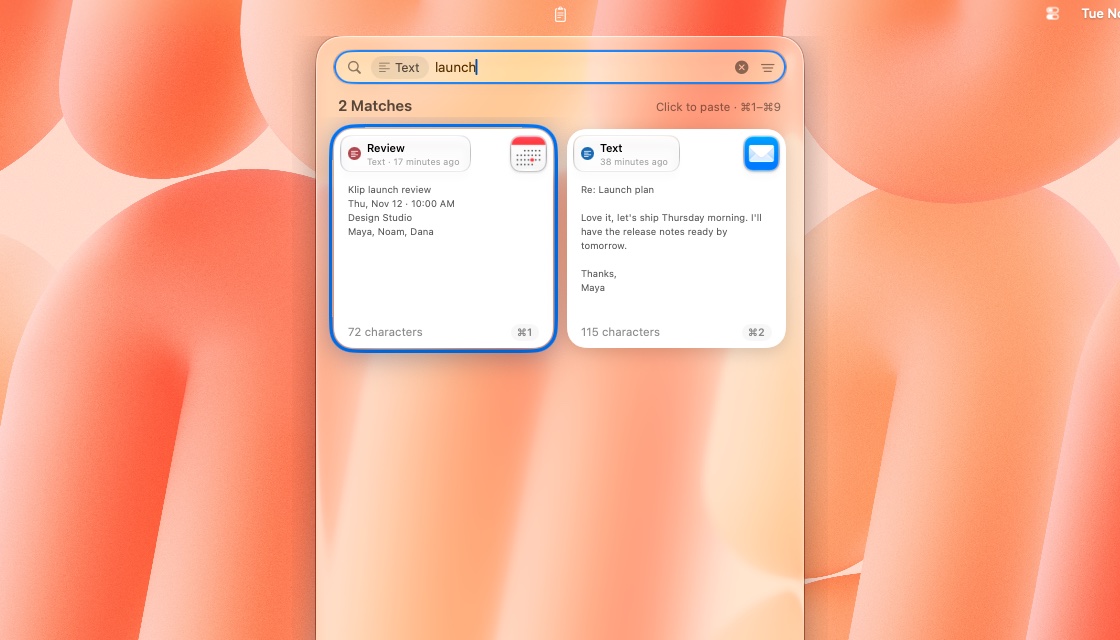
- The menu bar panel opens ready to type: search your whole history and filter by type or app, without opening the Klip drawer. Tab and ⇧Tab move between pinboards, and Space previews the selected clip.
- Choose the menu bar panel’s card size and lay it out in one row instead of two columns, in Settings → Klips.
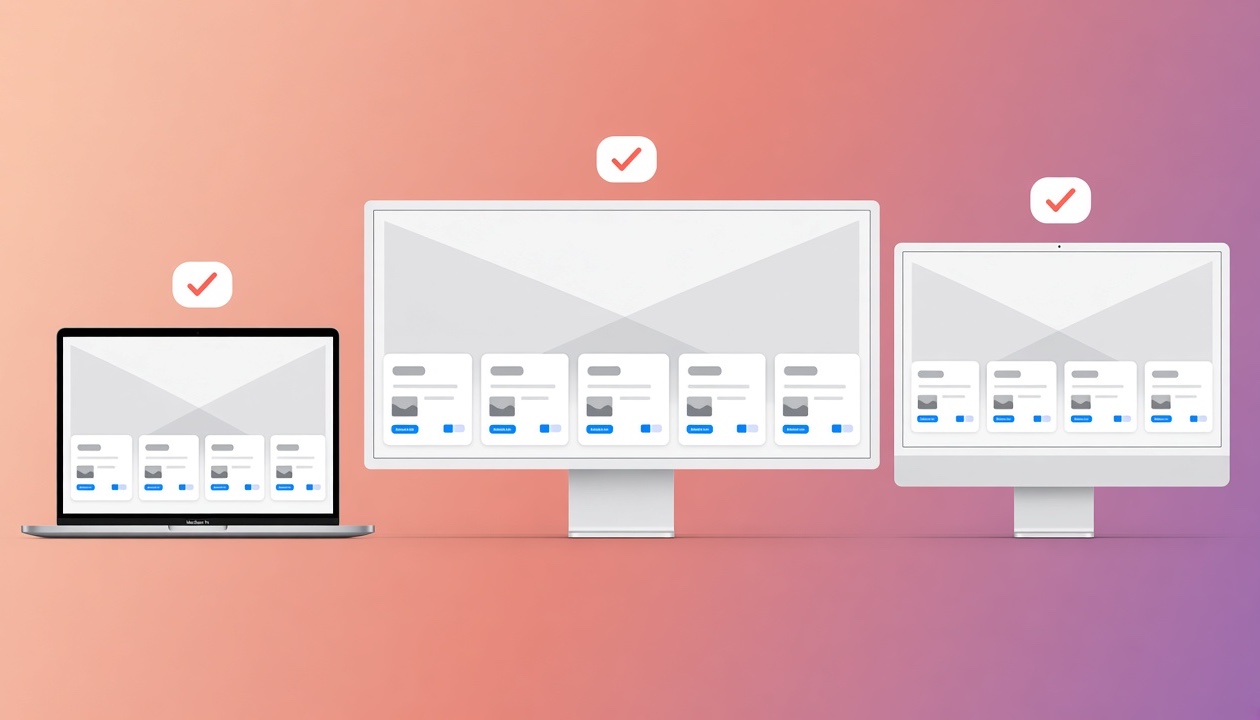
- Card Size and Font Size are remembered for each screen and resolution, so a MacBook, an ultrawide and an office monitor each keep their own. The new Font Size slider sets the size of the text on text cards.
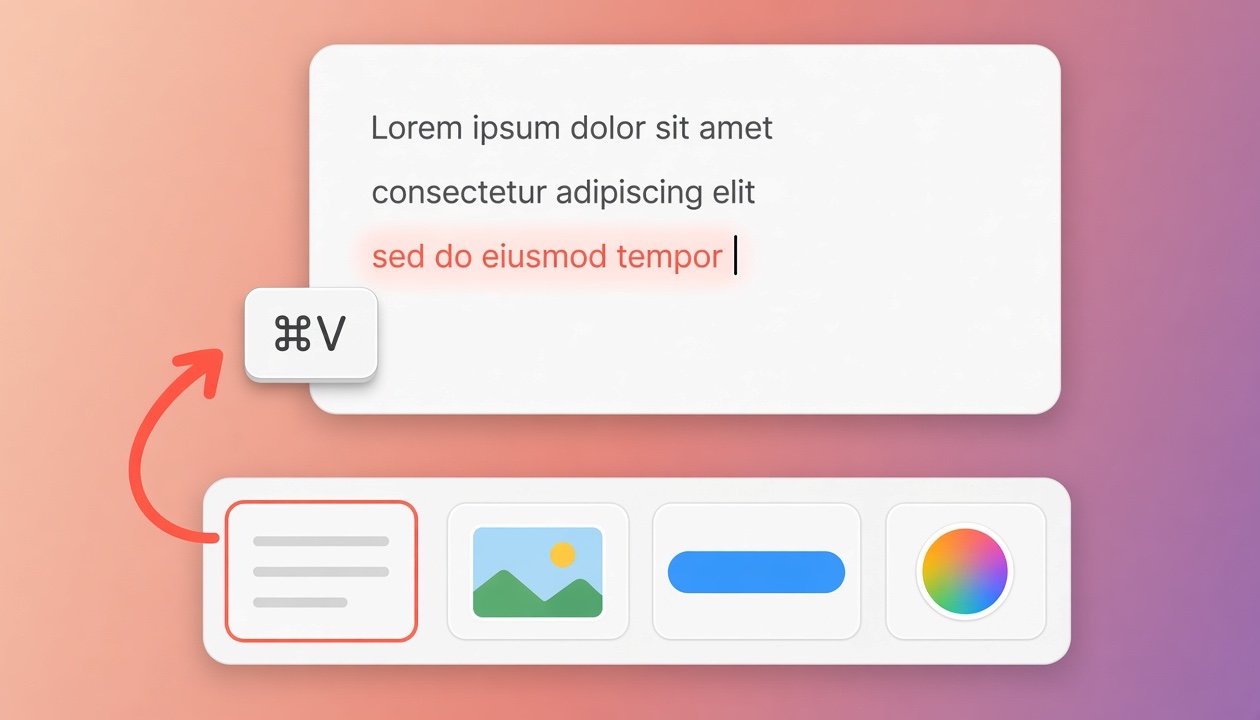
- Direct Paste is now a setting in Settings → General, off for new installs, so Klip asks for no permission until you turn it on. While it’s off, picking a clip copies it and a card at the top of the screen says “Press ⌘ V to paste”. Choose a smaller icon or nothing at all under Paste Notice.
- Copying a clip from Klip shows the same card, and all of Klip’s confirmations now appear at the top center of the screen.
- Select several clips the Finder way: ⇧-click for a range in both panels, ⌘-click in the menu bar.
- Importing a .klip file matches clips it already has, shows what will change first, and keeps the newer edit.
- Deleted clips are always erased for good: their text and images are overwritten before they’re removed.
- New: Make Klip Yours, a short setup shown once per Mac, a Settings → About page, and iCloud sync status in the menu bar panel.
- Fixes: a crash when pinning from a clip’s menu on macOS 27.2, renaming clips in the menu bar panel, and three-finger middle click with mice and trackpads that reconnect.
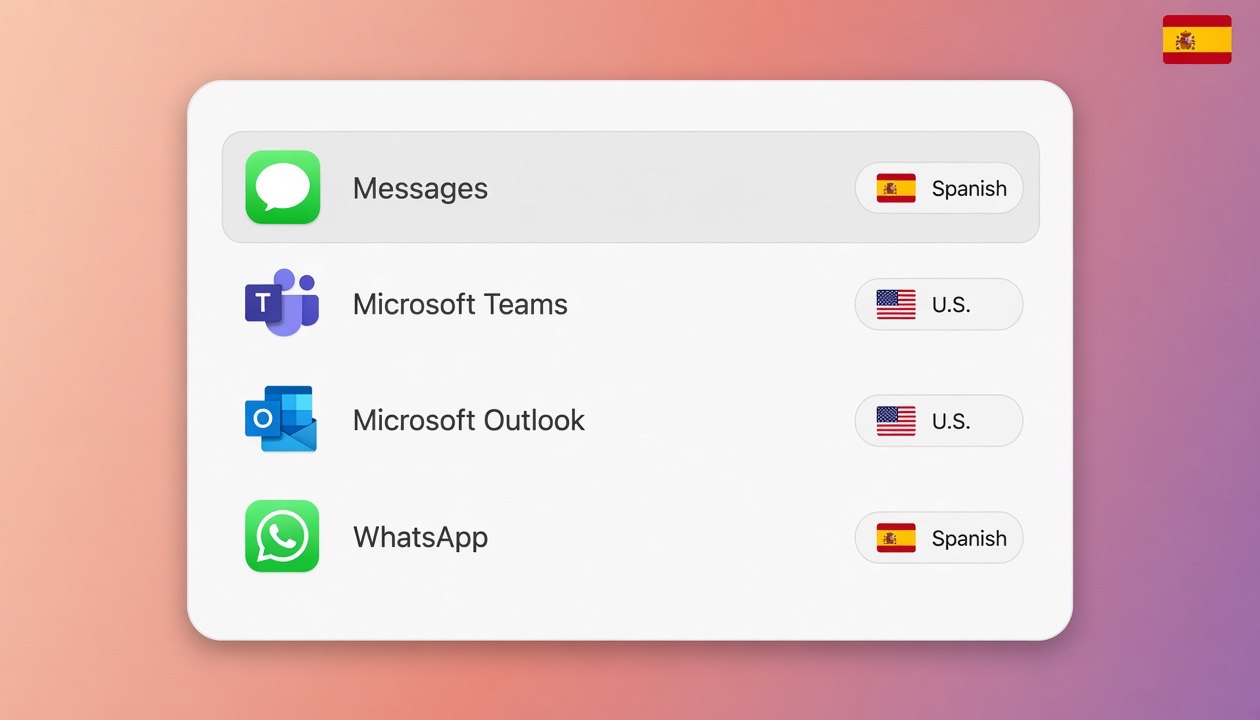
- Bonus, off by default: give each app its keyboard language, and Klip switches input source as you move between apps. Turn it on in Settings → Bonus.
Klip 1.70
Pinboards in the menu bar
- Your pinboards are now tabs in the menu bar panel, between the search and your clips. Click one to see what’s pinned there, or click Recent for your 50 latest clips. When they don’t fit, scroll the tabs with your mouse wheel.
- Searching inside a pinboard only searches that pinboard, and its name shows as a chip in the search bar. Click the chip to search all your clips instead.
- Pinned clips in search results now show the pinboard they’re on, with its color and name, so similar clips on different pinboards are easy to tell apart. This works in the menu bar and in the Klip drawer.
- Make the menu bar panel taller in Settings → Klips → Panel Height: choose 6, 8 or 10 cards to see without scrolling.
Klip 1.69
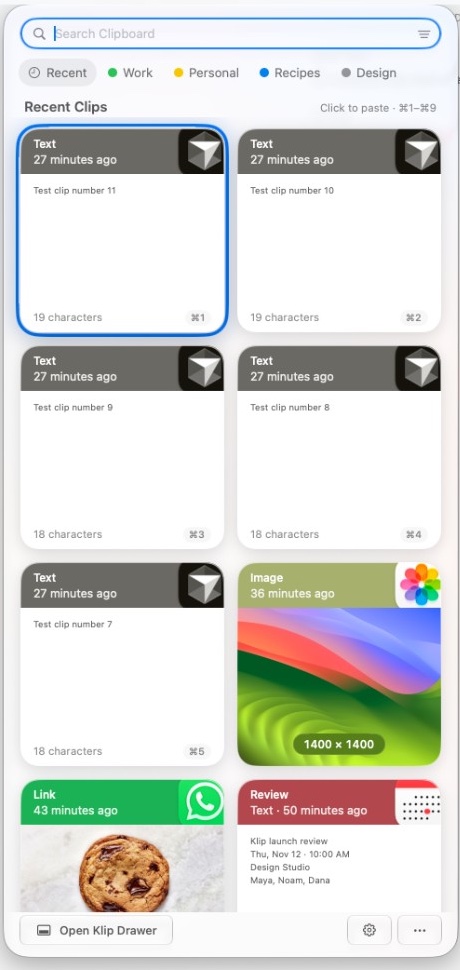
50 clips in the menu bar
- The menu bar panel now shows your 50 latest clips, up from 10, and a search finds up to 50 matches.
- The arrow keys step through the cards in reading order: ↓ goes to the next card, then on to the next row, and ↑ goes back.
- The footer button is now called Open Klip Drawer, so it’s clear it opens the full Klip panel.
Klip 1.68
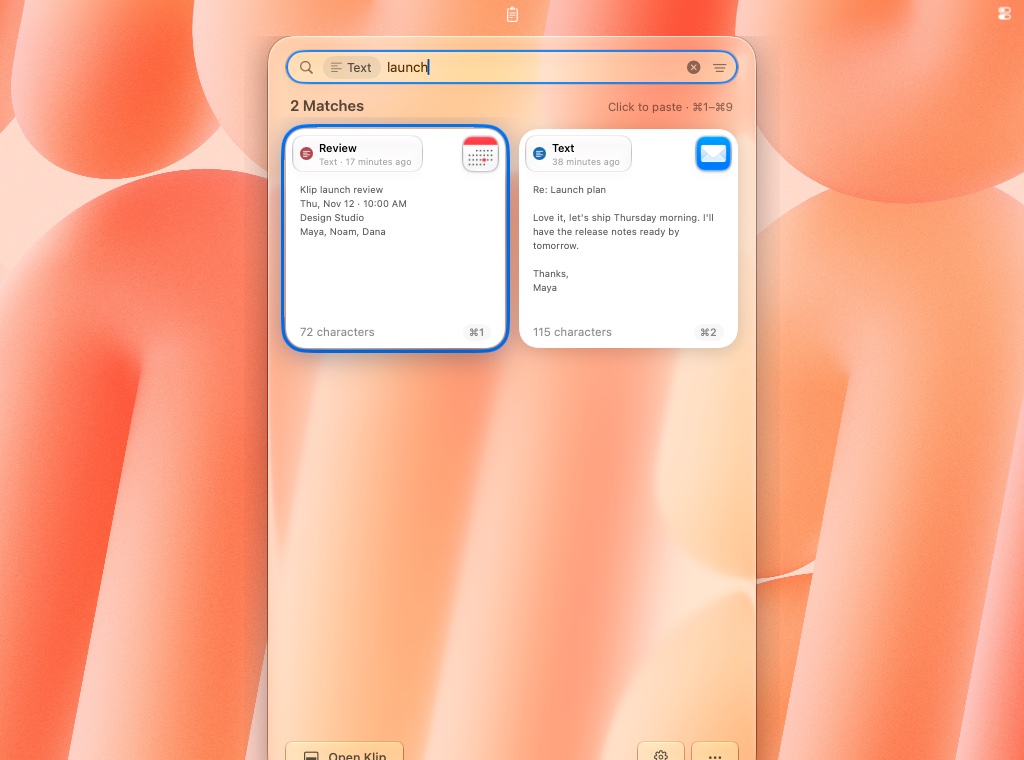
Search, right from the menu bar
- The menu bar panel now has a search bar on top, and it’s ready to type the moment the panel opens.
- It searches your whole clipboard history, not just the latest clips, and shows the 10 best matches as cards. Click one, press ↩, or use ⌘1–⌘9 to paste.
- Filter by clip type or by app from the filter button, just like in the Klip panel.
- Choose what ⇧⌘V opens: the Klip panel, as always, or the menu bar clips. Pick it in Settings → Shortcuts.
- Long values in the preview’s info list, like page titles, now wrap instead of squeezing their labels.
Klip 1.67
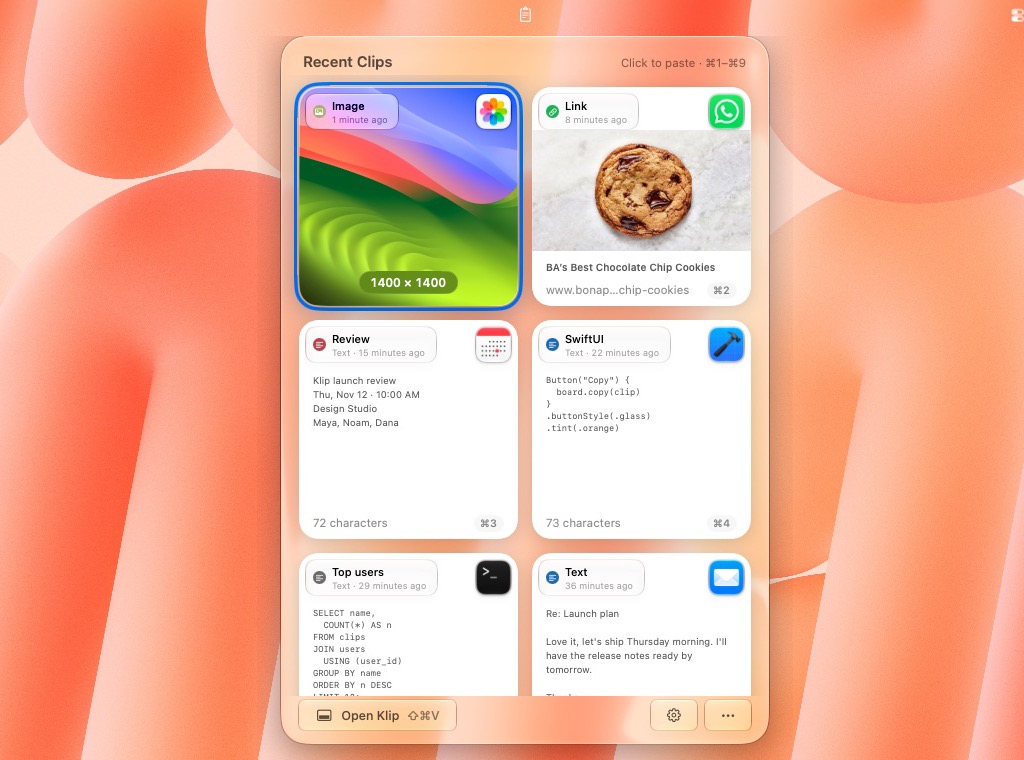
Recent clips, right in the menu bar
- Click Klip’s menu bar icon to see your 10 latest clips as cards, in a glass panel. Click one to paste it into the app you’re using, or press ⌘1–⌘9.
- Right-click a card to paste it as plain text, preview it, rename it or pin it to a pinboard.
- Right-click the icon, or click ••• in the panel, for the Klip menu: Open Klip, Pinboards, Settings and updates.
- It’s on by default. Prefer the classic menu? Turn off Recent Clips in the Menu Bar in Settings → Klips.
- Glass cards are now the default design on new installs. If you already use Klip, your cards stay as they are; switch in Settings → Klips.
- The preview window and the panel now have properly rounded shadows.
Klip 1.66
Now on macOS 26
- Klip runs on macOS 26 Tahoe as well as macOS 27, with every feature, from one download.
- The preview’s details show full dates and paths instead of cutting them off.
Klip 1.65
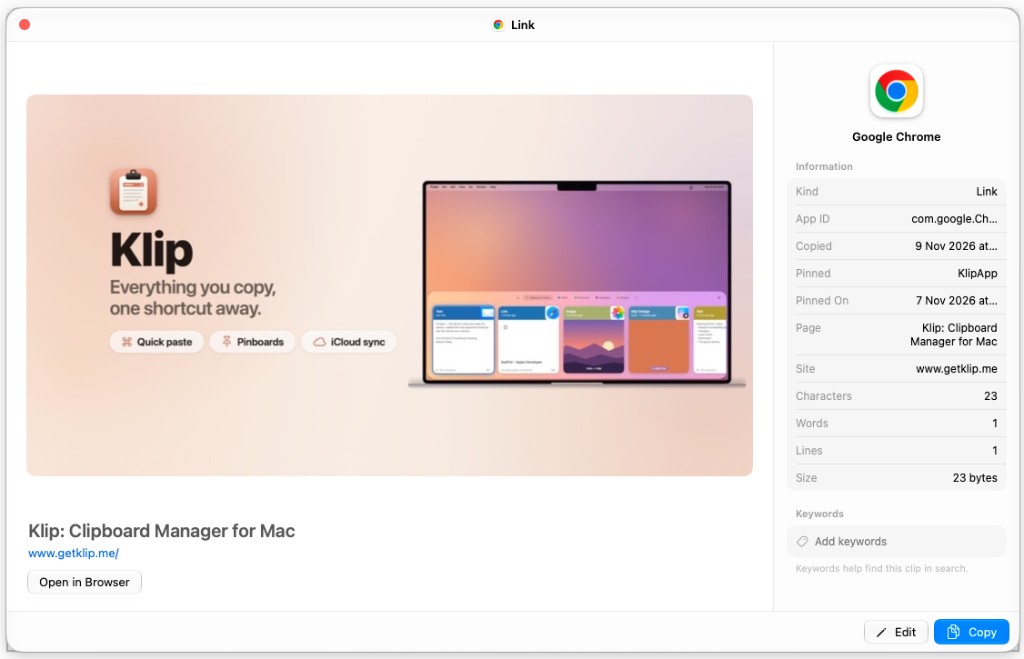
A new preview window
- Press Space on a clip for a preview that looks like a regular Mac window: the clip on the left, and on the right everything Klip knows about it, the app it came from, when you copied it, its size, word and line counts, image format and more.
- Keywords moved to the side panel, and the bottom keeps just Edit and Copy.
- Flip to the previous or next clip with ← and →.
- Drag the preview by its title bar or resize it from any edge; every preview opens where you left it.
- Save Automatic Copies in Settings → Privacy keeps the copies apps make by themselves, like copy-on-select in terminal apps. Copies from password managers are always skipped.
- The iCloud status now shows progress from the moment Klip launches.
Klip 1.64
Sync shows its progress
- The iCloud status says what Klip is doing, connecting, downloading or uploading, how long it has been at it, and when it last synced. The icon spins while it works.
- A big upload can take several minutes; after two, Klip says so, so a long sync no longer looks stuck.
- Export Support Report in Settings → General → Support saves a zip of Klip’s recent logs and settings to send if something goes wrong. It never includes your clips.
Klip 1.63
Make the shortcut yours
Default⇧⌘V
My pick⌃§
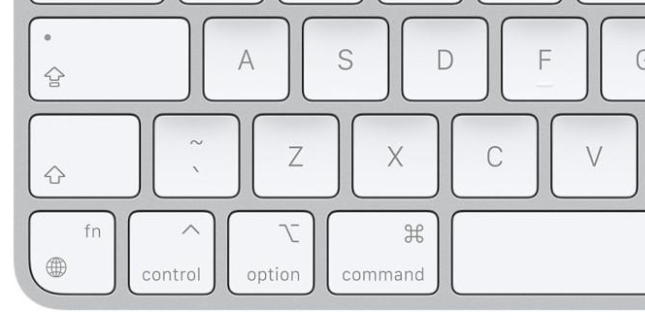
Klip opens with ⇧⌘V, but the best shortcut is the one your hand finds without looking. Choose your own in Settings → Shortcuts. Mine is ⌃§: control plus the § key left of 1, both under your left thumb and pinky, so Klip is one quick press away.
- A new Settings window with a sidebar, laid out like System Settings.
Bonus feature An extra that ships with Klip, separate from your clipboard history.
- A window switcher: press ⌃1 to list every open window, the most recently used first, including windows on other desktops and in full screen. Pick one with the arrow keys and Return, or click it.
- Browse tabs like folders: Safari, Chrome and Finder windows with several tabs open into their tabs with →, and a New Tab row opens a new one.
- The window switcher and its tabs are off until you turn them on in Settings → Bonus, where three-finger middle click now lives too. They use the same Accessibility permission Klip already has.
Klip 1.62
More privacy for your secrets
- Don’t save API keys and tokens: Klip can skip copies that look like secret keys, such as GitHub, AWS, OpenAI or Stripe keys.
- Securely erase deleted clips: when you delete a clip, Klip wipes its contents instead of just removing it.
- Both are off until you turn them on in Settings → Privacy.
- A new What’s New tour shows you the latest features after each update. You can open it again from the menu bar.
Klip 1.60
A fresh start for today
- Clear just the last 24 hours of history, from Settings or the gear menu. Everything older stays put.
Klip 1.58
A new look
- A new app icon, a glass clipboard with a stack of cards, matching Klip for iPhone and iPad.
- A smaller download.
Klip 1.55
Make it yours
- Choose between Glass and Classic cards in Settings.
- Give a pinned clip its own emoji icon so you can spot it at a glance.
Klip 1.51
Tidier Settings
- A new Klips tab gathers everything about your clips in one place: link previews, screenshots and press to preview.
Klip 1.49
Never miss an update
- Klip now tells you when a newer version is out. You can also check any time from the menu.
Klip 1.47
Sync you can see
- A small iCloud indicator shows when your clips are syncing.
- Drag pinboards to put them in the order you like.
- Open a copied link in your browser straight from Klip.
Klip 1.43
Coming from Paste?
- Bring your clips over from Paste in a few clicks.
- Switching between pinboards is now instant.
Klip 1.40
Peek before you paste
- Press and hold a clip to see a large preview of it.
Klip 1.39
Privacy settings
- Choose apps Klip should never record from.
- Decide whether Klip shows up while you share your screen.
Klip 1.33
Screenshots, ready to paste
- New screenshots are copied to your clipboard automatically, so you can paste them right away.
Klip 1.29
Share your pinboards
- Export a pinboard as a file and send it to a friend, or import one you received.
Klip 1.28
Your passwords stay private
- Klip never saves anything you copy from a password manager.
Klip 1.27
Klip everywhere
- iCloud sync keeps your history and pinboards the same on every Mac, iPhone and iPad.
- Add keywords to a clip to find it faster in search.
- Photos you copy from the Photos app are saved as images.
Try new features first
Join the Klip TestFlight beta and get iPhone and iPad updates before they reach the App Store.
Coming nextSoon
Already in testing
- Clear just the last 24 hours of history, next to Clear All History.
- The new card-stack app icon, matching Klip for Mac.
- On iPhone Duo, the Klip keyboard puts the globe and Paste where Apple’s keys are, and adds shortcuts to your history and pinboards.
Klip 1.0Latest
Your clipboard, now on iPhone and iPad
- Your Mac’s history and pinboards on your iPhone and iPad through your own iCloud, or use Klip on its own without a Mac.
- Tap a clip to copy it, and tap Paste to save what’s on your clipboard.
- The Klip keyboard: paste any clip in any app, right from the keyboard.
- Save to Klip from the Share menu, or with a Shortcut.
- Pin clips to colored pinboards, and share a pinboard with a friend.
- Glass or Classic cards, emoji icons for pinned clips, and Dark and Tinted app icons.
- Filter by clip type or app, and pull down to sync.
- Made for iPhone Duo too: the open clip sits beside your cards.